
Moving or flickering elements can be disorienting or harmful for people with vestibular disorders, photosensitive epilepsy, or low vision, while also increasing distraction for users with ADHD.
Users can turn on a prefers reduced motion setting in their operating system to request less movement. This article walks through how to detect that preference in your code and provide an equivalent, reduced-motion experience.
We’ll cover:
- Implementing reduced-motion support in CSS and JavaScript
- Deciding the prefer reduced motion alternative
- Testing your reduced-motion code
- Using pause, stop, or hide techniques
To see a video of this content, see Designing accessible animation and motion on your website (video).
Implementing reduced-motion support in CSS and JavaScript
To support users who prefer reduced motion, your site must detect that setting and adjust animations at the code level. You’ll use CSS to control or replace animations written in CSS, and JavaScript to modify animations created in JavaScript.
This supports the intent of WCAG 2.3.3, which requires a way to disable nonessential animations triggered by user actions; detecting reduced-motion preferences gives you a reliable way to do that in code. Note, WCAG 2.3.3 is a AAA success criteria but can be impactful.
CSS for prefers reduced motion
You can control animations and transitions for users who prefer reduced motion by using the prefers-reduced-motion CSS media query. This allows you to turn off or simplify CSS animations.
/* Apply styles only for users who prefer reduced motion */
@media (prefers-reduced-motion: reduce) {
/* The universal selector (*) targets all elements on the page and !important ensures this rule overrides any other rules */
  * {
    animation: none !important;
    transition: none !important;
    scroll-behavior: auto !important;
  }
}
JavaScript for prefers reduced motion
You can also detect a user’s prefer reduced motion setting in JavaScript using matchMedia.
// add a variable for detecting if user has prefers-reduced-motion set
var prefersReducedMotion = window.matchMedia("(prefers-reduced-motion: reduce)");
Once you have the variable, you can check the preference and disable motion. Below is a possible example:
if (prefersReducedMotion.matches) {
  // User prefers reduced motion — stop JS animations here
} else {
  // User allows motion — run animations normally
}
Deciding the prefer reduced motion alternative
The first option is to disable the animation with CSS or JavaScript. Most animations, especially decorative effects such as fades, slides, parallax, or hover transitions can simply be removed for people who prefer reduced motion.
The second option is providing a static alternative to the animation. This is only needed if disabling an animation would hide information, stop a process indicator, or make content unclear.
Here are some examples:
- An animation communicates status
Example: a spinning loader, pulsing “recording” dot, or typing indicator.
Fallback: replace with static text such as “Loading…” or a solid icon. - An animation reveals content or makes something visible
Example: an alert or error message that only becomes visible through a fade-in or slide-in animation.
Fallback: keep the alert visible by default without relying on motion. - An animation is the only way to navigate or advance content
Example: a CSS-driven auto-rotating carousel.
Fallback: show the first slide statically and provide manual next/previous buttons. - An animation helps the user understand what changed
Example: an element that “shakes” to indicate an invalid entry.
Fallback: ensure the error is always conveyed through persistent cues like text or an icon. The animation should be supplemental, not the only way meaning is conveyed.
Examples of static alternatives
Below, we have an examples of CSS and JavaScript code that detects reduced-motion preferences and provides a static alternative.
In the CSS example below, a pulsing dot indicates recording. When a user has prefers-reduced-motion enabled, the media query detects that preference and applies styles that remove the pulsing effect and displays a static “Recording” label instead.
Note: When testing this example, it may take a few seconds for the code to detect your prefers-reduced-motion setting and show the static alternative.
For both of our codepen demos, we’ve provided an option to pause or resume the animation because of the pause/stop/hide requirement for animations that are longer than five seconds.
In the JavaScript example below, the loading screen uses moving dots. When matchMedia detects that the user has prefers-reduced-motion enabled, the script replaces the animated dots with static text so the loading state is communicated without motion.
Testing your reduced motion code
After you’ve added code that detects users’ reduced-motion settings, the next step is to verify that it works as expected. We cover two methods of doing this test: system-level settings and using Chrome DevTools.
You can test the code pen’s above with both of these methods. When your prefers reduced motion setting is on, the static alternative should appear.
System-level method
One way to test is to change your prefer reduced motion setting on your system. This is how to do that on Windows and Mac:
- Windows: Go to Settings → Accessibility → Visual effects → Animation effects and toggle it Off.
- Mac: Go to System Settings → Accessibility → Display → Reduce motion, and toggle it On.
Chrome DevTools method
The next way is to emulate having the prefer reduced motion setting with Chrome’s DevTools:
- Open Developer Tools: Right-click anywhere on the page and choose Inspect, or use the shortcut:
- Windows: Ctrl + Shift + I
- Mac: ⌘ + Option + I
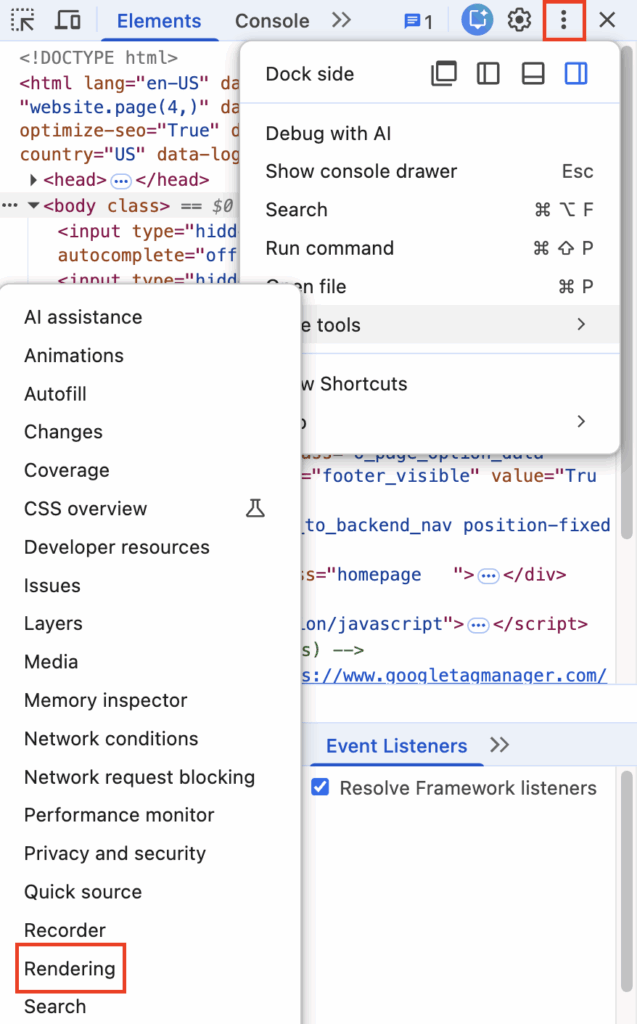
- Open the Rendering tab: Click the three vertical dots (⋮) in the upper right corner → More tools → Rendering.
- Emulate reduced motion: In the Rendering panel, find Emulate CSS media feature prefers-reduced-motion, then select Prefers-reduced-motion: reduce.
- Interact with the page: Scroll, hover, and open interactive elements to see how motion changes.
Using pause, stop, or hide techniques
It’s worth noting that not all your users who prefer reduced motion will have this setting on. While coding prefers-reduced-motion options is a great way to stop issues before they start, you should still pause, stop, or hide animated content that:
- starts automatically,
- lasts more than five seconds, and
- is not essential to understanding the content.
Small UI transitions, like a quick hover fade, do not require controls. However, larger or looping animations like carousels and autoplaying backgrounds may need explicit controls.
Reduced motion vs. pause/stop/hide
Reduced-motion support and WCAG’s Pause, Stop, Hide requirement solve related problems.
In practice:
- Reduced-motion support in your code lets you proactively disable or replace any animation you choose, including very short or decorative effects.
- Pause/Stop/Hide controls are still required for long-running, auto-playing, nonessential motion, and must be available to all users, including those who do not use prefers-reduced-motion.
- By combining both, you can detect reduced-motion preferences and automatically pause or simplify long-running animations, making them safer by default, while still providing controls for everyone else.
Design with motion in mind
Different roles can design with motion in mind:
- Developers can implement prefer reduced motion alternatives and pause, stop, hide options early, ensuring motion is controlled or replaced appropriately.
- Designers and content creators can include prefers reduced motion alternatives, including planning static alternatives, and determining where motion adds value without creating barriers.
- QA testers and accessibility specialists can confirm that animations behave correctly, controls work, and reduced-motion settings are respected.
Incorporating these steps into your development process makes your site safer, more comfortable, and inclusive for more users, proactively addressing the needs of those sensitive to motion.