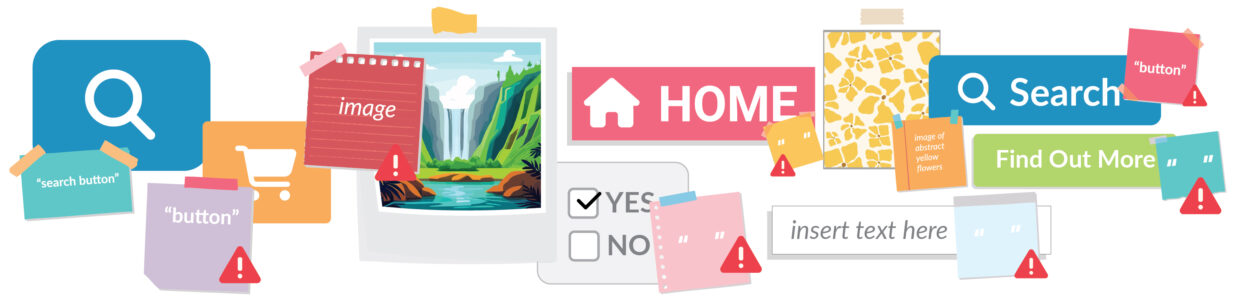
Let’s start with what an accessible name is: an accessible name is the text that assistive technologies use to identify an element or to communicate it to a user.
What does that mean?
- It means if a screen reader user navigates to a button, the accessible name is what the screen reader announces to the user.
- It’s what a voice recognition user needs to say aloud for their software to take them to the correct element.
- Braille output devices would present that accessible name in Braille to the user.
It’s important to get it right. It’s also easy to get right once you know how to check your accessible names and how assistive technology gets that accessible name.
In this article, we’ll cover:
- How accessible names can affect users, including a screen reader demo
- How to easily view your interactive elements’ accessible names
- How assistive technology determines the accessible name with examples
- Our suggestion for getting accessible names right
How accessible names can affect users
Assistive technology interacts with the accessible name. The screen reader announces it, voice recognition software looks for it on the page, and braille output devices can present it to the user.
If the accessible name is wrong or non-existent, things can get confusing and frustrating quickly.
Scenario 1: A voice recognition user
A voice control user might say, “Select Search” to navigate to the website’s search bar.
If the search field doesn’t have an accessible name, the command may not work. Instead, the user would have to rely on slower methods of navigating, like numbered overlays or grid navigation, to interact with the page.
Scenario 2: A screen reader user
A screen reader user is shopping online and wants to review the items in their cart. They tab through the website’s header, where the shopping cart is usually located.
Visually, the header displays a shopping cart icon. But instead of hearing “Shopping Cart, button,” the screen reader announces “Settings, button” because the accessible name is incorrect.
The incorrect accessible name causes the user to skip the button, assuming it opens the site’s settings. As a result, finding the shopping cart becomes confusing and takes longer than it should.
Watch the video below for a demo of this exact scenario.
How to view interactive elements’ accessible names
An important part of getting accessible names right is knowing how to check them. We’ll cover two ways. First, WebAIM’s free WAVE extension, and second the Accessibility pane in Chrome’s Dev Tools.
WebAIM’s free WAVE extension
WebAIM’s free WAVE extension displays all your interactive elements’ accessible names. It’s something you could check on a webpage in less than 2 minutes.
- Install the free WAVE extension.
- Navigate to the page you want to test, and select the WAVE extension icon in the top right of your browser.

- Select the Order tab.
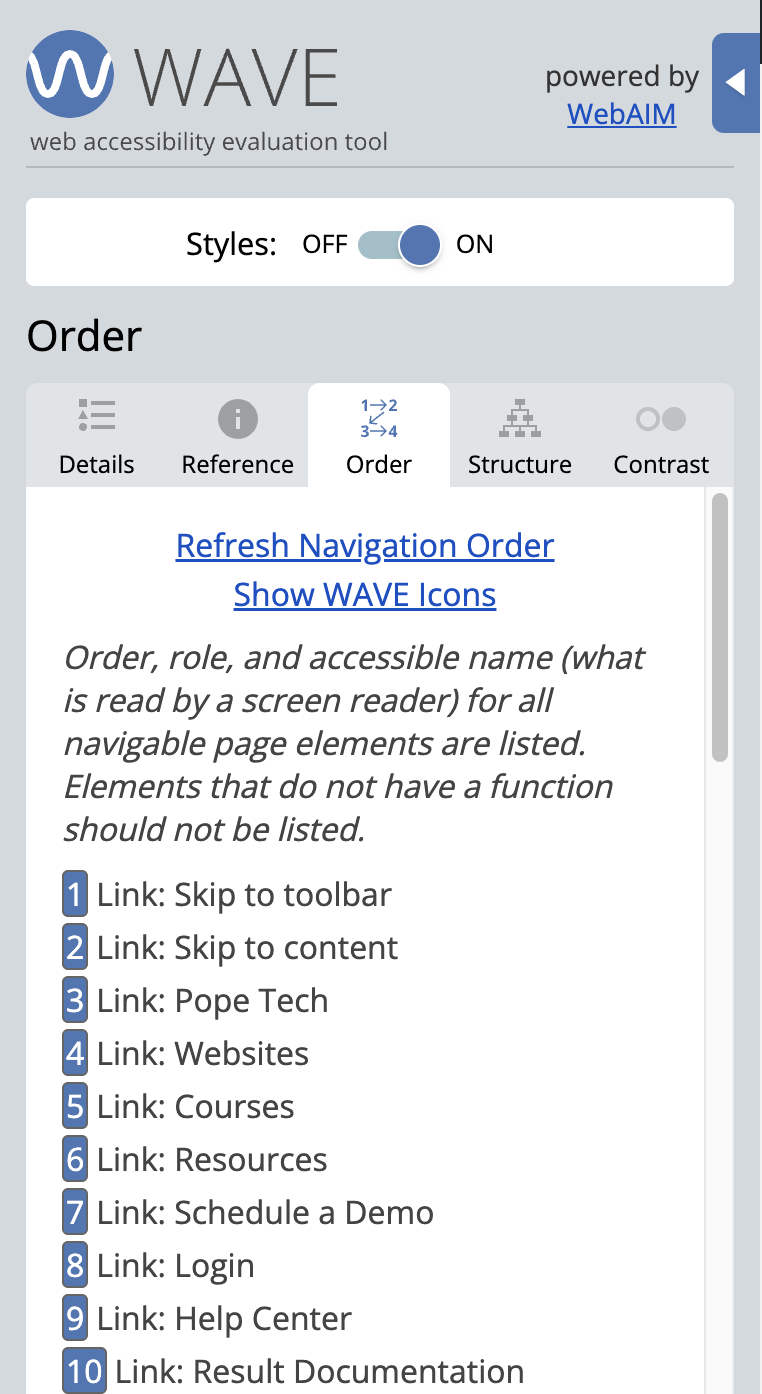
- Select the list item to go to it on the page.
You’re now on a list of all the interactive elements on that page. It includes their order, role, and accessible name. So, the text after the role is what assistive technology announces, presents, or looks for.
Here’s what you’re looking for:
- All the accessible names are correct. Select the list item and make sure the accessible name matches what’s visually presented.
- Every interactive element has an accessible name. WAVE will display no content next to the role if there isn’t an accessible name, which means there’s nothing for assistive technology to interact with.
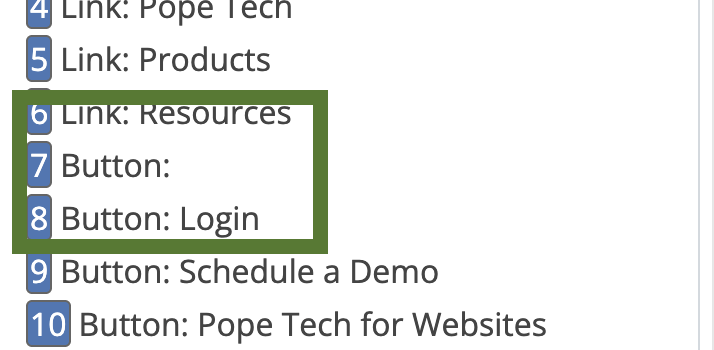
- Errors and alerts that identify a missing accessible name. The Details tab does display errors like empty buttons, missing form label, and any alert with a label issue. These are good indicators that there’s an issue with the accessible name.
Our article, How to use the WAVE extension, covers each tab and how to use them to check your pages for accessibility. If you’re interested in checking multiple pages at a time, try our Pope Tech free plan (no credit card required).
Accessibility in Chrome’s Dev Tools
Developers already working in Chrome’s Dev Tools might prefer the Accessibility pane. The Accessibility pane also tells you exactly what the accessible name is being pulled from, which can help you troubleshoot issues and easily fix them.
Our Accessibility Tree article covers how to use the Accessibility pane to view the accessible name and learn where the name is being pulled from.
How assistive technology determines accessible names
You can find your interactive elements’ accessible names. The next step is knowing how to fix issues and, especially as a developer, how to code so the accessible name is never an issue.
Assistive technology determines the accessible name by looking for certain HTML attributes or labels. That means in order to know how to fix issues and properly code it, you just need to know what attributes and labels assistive technology looks for and in what order.
The attributes and labels assistive technology uses to determine the accessible name and the order it looks for them in is:
- aria-labelledby
- aria-label
- Native HTML elements (caption, label, alt)
- The element’s text content
- title
That means assistive technology first looks to see if there is an aria-labelledby attribute, then it continues down the list. Whatever is defined first in the list, that’s the accessible name.
Example 1: Element’s text content
Here is HTML for a submit button.
<button>Submit</button>Here’s how assistive technology would determine the accessible name:
- Check aria-labelledby: none
- Check aria-label: none
- Check native labeling: none
- Check text content: Submit
The accessible name is Submit.
Example 2: aria-label
Here is HTML for a submit button with an aria-label.
<button aria-label="Refresh">Submit</button>Here’s how assistive technology would determine the accessible name:
- Check aria-labelledby: none
- Check aria-label: Refresh
The accessible name is Refresh. In this example, there was a lingering aria-label that was pasted in and not removed or accidentally put as Refresh.
Even though there is text that says Submit, it doesn’t make it to the assistive technology.
This is an example of an issue a visual user would miss unless they checked the accessible names using a tool like WAVE or tested with a screen reader.
It’s also an example of a real barrier for assistive technology users. They don’t want to refresh the form, and wouldn’t know it was actually the submit button.
Our suggestion for getting accessible names right
We live by the first rule of ARIA, which is to not use ARIA. Basically, the rule encourages developers to use native HTML whenever possible since incorrect ARIA can actually hurt accessibility (like we saw in example 2 above).
That’s why our suggestion is to:
- Use a visual label on interactive elements. Most times, a visual label is just better for all users. Then, there is no need for aria, and the accessible name is the element’s text content.
- Avoid ARIA by hiding visual labels with CSS. In most of the situations where we don’t want a visual label, we hide it with CSS. This means the accessible name is still the element’s text content. Visual users just can’t see the text and only see the icon. Check out Adrian Roselli’s Priority of Methods for Labeling a Control to learn more about when and how to hide content with CSS.