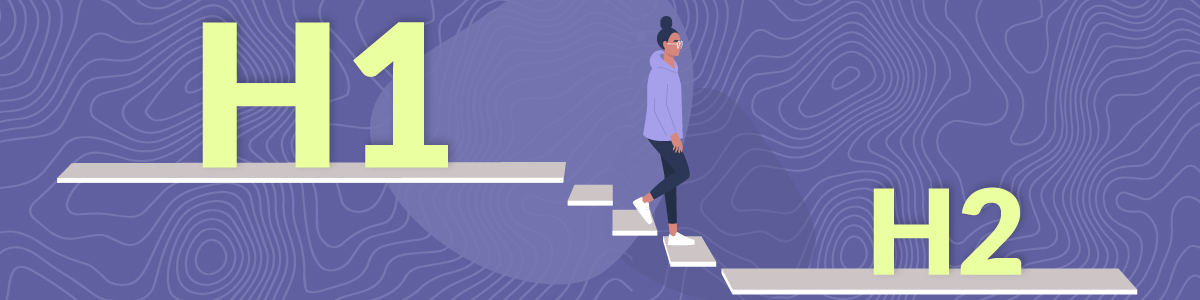
Headings are the main way screen reader users navigate a page. It’s important that they’re made with proper heading HTML elements, so screen readers can interact with them correctly.
In this video, we’ll cover:
- How to navigate proper headings with NVDA
- What happens when headings don’t have the proper HTML
- How to use the NVDA Elements List to pull up the headings list
Transcript
Sighted users scan a page by scrolling down and looking for headings. Screen reader users do the exact same thing, but they rely on structural HTML headings, like H1, H2s, and H3s.
Because screen readers rely on this underlying structure, your heading can’t just look like one visually; it needs that actual HTML heading tag in the code. This is important because jumping between headings is the number one way screen reader users navigate.
In this video, we’ll use the NVDA screen reader to show you: How to navigate proper headings with NVDA; What happens when headings don’t have the proper HTML; And how to use the NVDA Elements List to pull up the headings list.
For more details, be sure to check out our resources linked below.
We’re on a Pope Tech blog post. Each of the headings are built with proper heading HTML elements, so navigating them with NVDA is easy. To jump to the first heading on the screen, I just press the H key.
NVDA: Main landmark, 8 common heading questions, heading level 1.
NVDA: 1. Can I have multiple H1s on a page? Heading level 2.
NVDA: 2. Are skipped headings ever OK? Heading level 2.
You can also press Shift + H to go backward, or use the number keys 1 through 6 to jump to specific heading levels. Watch what happens when I press 3.
NVDA: Headings and footers example. Heading level 3.
NVDA: Using only a heading with a table. Heading level 3.
An NVDA user can quickly get a sense of how the content is organized and navigate up and down the content using their heading keys because the heading structure is made using the correct heading HTML elements.
But what happens when text looks like a heading, but isn’t actually coded as one?
NVDA: Main landmark, Headings demo. Heading level 1.
NVDA: Complimentary landmark, Search Articles. Heading level 2.
The user presses H. But, it skips a heading, or if there are no headings on the page, it doesn’t do anything. Now, the user might miss an important part of the page’s heading structure, or be forced to go line-by-line to find the content they are looking for.
NVDA also has a feature called the Elements List. By pressing your NVDA key + F7, you can pull up a list of all the headings on the page.
NVDA: Elements list dialogue. Type. Grouping.
NVDA: Headings radio button. Tree view.
NVDA: Level 1. 6. Should I use a heading instead of a table caption?
NVDA: 6. Should I use a heading instead of a table caption? Heading level 2.
This acts like a table of contents. Users can filter by headings, arrow through the hierarchy, and press Enter to jump straight to that section. But again, this list is completely empty if the page relies on visual styling instead of real HTML heading tags.
The takeaway? Good headings aren’t just about SEO or visual design; they are the primary roadmap for screen reader navigation. Make sure your headings are made with proper heading HTML tags.
Remember to subscribe for more accessibility videos.