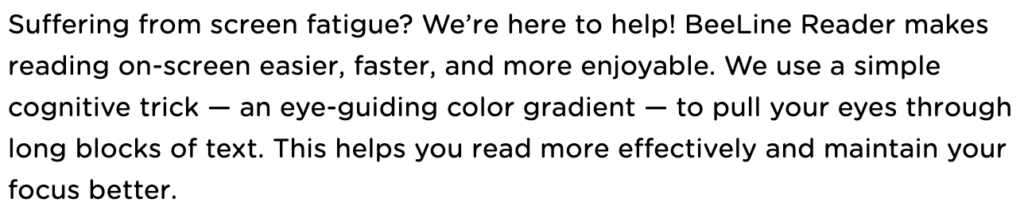
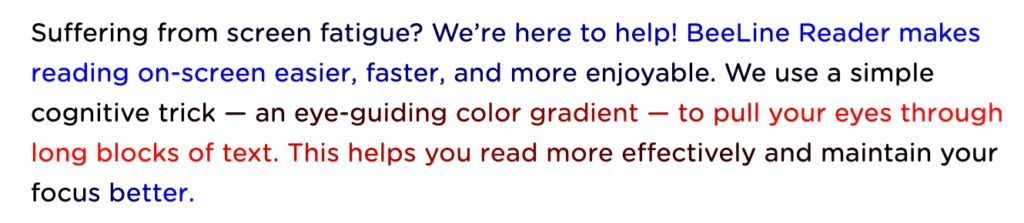
BeeLine Reader uses color gradients to help students and faculty read more easily. This helps readers of all ability levels, but is especially helpful for readers with disabilities like dyslexia, ADHD, or visual impairments.
Give BeeLine Reader a try and learn more in our Pope Tech and BeeLine Reader Partnership Announcement.
In this article, we’ll cover:
- How to get BeeLine Reader in your Canvas Instance
- How to access BeeLine Reader
- Student instructions to include in your Canvas course
How to get BeeLine Reader in your Canvas Instance
This feature is included in all existing Pope Tech Canvas Accessibility customers’ plans.
If you’re interested in activating BeeLine Reader so students and instructors can begin using it, contact your account representative or complete our contact form.
How to access BeeLine Reader
Once BeeLine Reader is activated in your Canvas Instance, you can access it anywhere the Alternative Formats icon is. This means it’s in most content list views and at the top of most content pages.
From a content list:
- Navigate to a content list view by selecting Pages, Assignments, Quizzes, Modules, or Discussions in the left Courses Navigation Menu.
- Select the Alternative Formats icon for any content in the list.

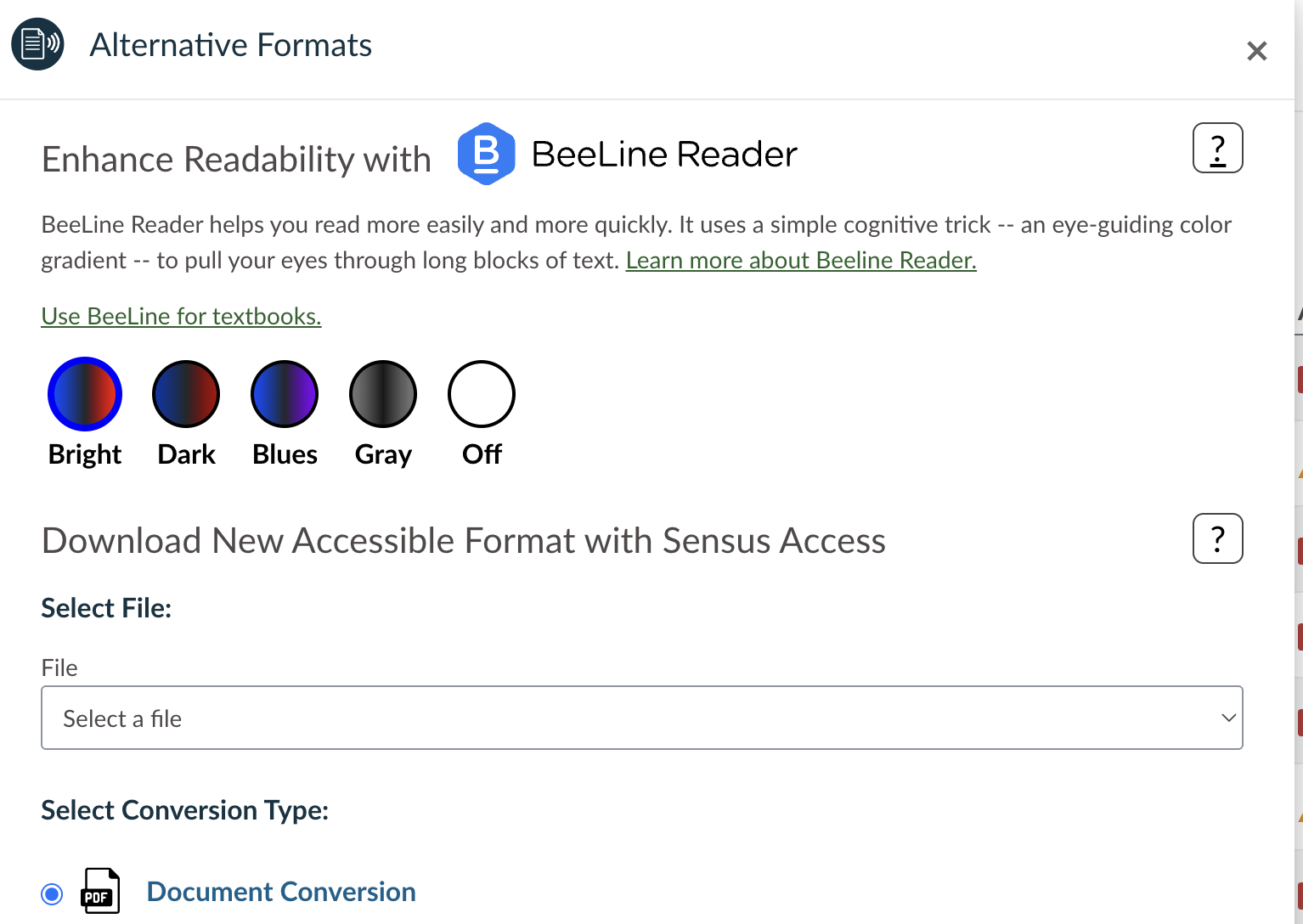
- Select your BeeLine Reader preference and exit the dialog box. These settings apply to all Canvas content.
From a content page:
- On Pages and Syllabus content types, select the Alternative Formats icon at the top.

- Select your BeeLine Reader preference and exit the dialog box. These settings apply to all Canvas content.
Student instructions to include in your Canvas course
The Alternative Formats icon and BeeLine Reader preferences are also available for students. Students with varying disabilities can use it to make reading content easier.
Here is a blurb and instructions you can paste into your Canvas course or syllabus for students:
In this course, you can use BeeLine Reader. This tool changes the color of the text to help improve reading. It helps readers of all ability levels, but is especially helpful for readers with disabilities like dyslexia, ADHD, or visual impairments.
Follow these steps to access and use BeeLine Reader:
- Select the Alternative Formats icon in content lists or from the top of content pages.

- Select your BeeLine Reader preference and exit the dialog box. These settings apply to all Canvas content.
For more Canvas resources, check out: